Label Layouts
This page is the starting point for anyone who wants to know what is printed on a Commander4j label, or who needs to change it. You do not need to be a programmer to read it. Where a change does need technical help, the page says so.
What a pallet label looks like
Every pallet that Commander4j records gets a label like the ones below. The left-hand label was printed on a Zebra printer, the right-hand one on an Intermec printer. Both carry the same information in the layout the GS1 standard expects, so a customer's warehouse can scan it on arrival.
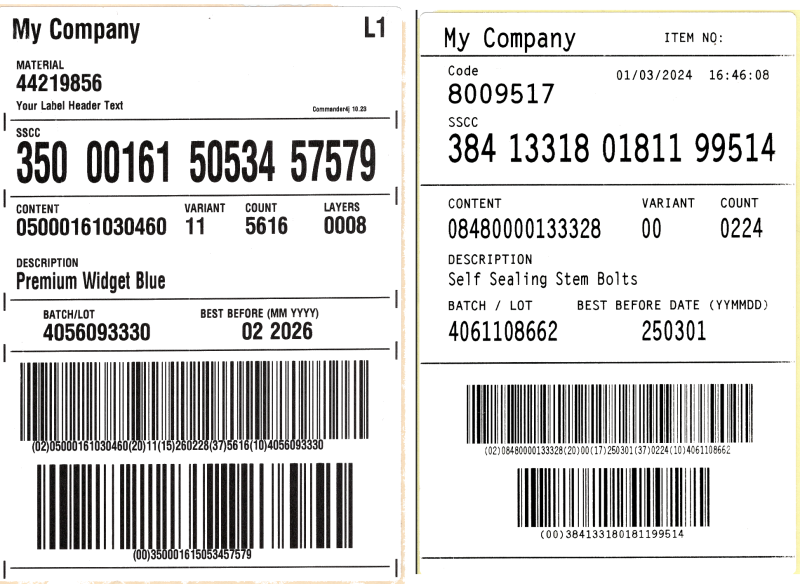
| What you see | What it means | Where the value comes from |
|---|---|---|
| My Company | Your company or customer name. | The Customers record attached to the process order. |
| L1 | Label number. When two labels are printed per pallet the second one says L2. | Counted automatically as labels are printed. |
| MATERIAL | Your product code. | Materials. |
| Your Label Header Text | An optional line of free text, the same on every label. | The LABEL_HEADER_COMMENT setting in System Keys. |
| SSCC | The 18-digit Serial Shipping Container Code. This number is unique to the pallet and is what the customer scans. | Generated by Commander4j from the number range in System Keys. |
| CONTENT | The GTIN (EAN) of the case or unit on the pallet. | The unit of measure on the Materials record. |
| VARIANT | Two-digit GS1 variant for the case. | Materials unit of measure. |
| COUNT | How many cases are on the pallet. | Entered on the Pallet Label screen, defaulting to a full pallet. |
| LAYERS | How many layers of cases. | Calculated from the pallet quantity and the per-layer unit of measure on the Materials record. |
| DESCRIPTION | Product description. | Materials. |
| BATCH/LOT | The batch number. | Built from the batch format in System Keys, or overridden on the Customers record. |
| BEST BEFORE | The expiry date. | Date of manufacture plus the shelf life held on the Materials record. |
| Top barcode | A GS1-128 barcode containing the content (02), variant (20), best before (15), count (37) and batch (10). | Built from the values above. |
| Bottom barcode | A GS1-128 barcode containing only the SSCC (00). | The pallet number. |
Case and tray labels work the same way but carry no SSCC. See Case Label.
How a label gets from the screen to the printer
There are three ways Commander4j can produce a label, and which one you use decides how the label is designed.
| Route | Designed with | Best for | Preview on screen? |
|---|---|---|---|
| Standard report | JasperSoft Studio, a free visual report designer. The label is a .jrxml file in the reports folder. |
Any printer that has a normal Windows or Mac print queue, including office laser printers. This is how a fresh install is set up. | Yes |
| Label template | A text file in the labels folder, written in the printer's own command language with Commander4j placeholders for the values. |
Industrial barcode printers (Zebra, Intermec, Printronix). Faster, and the barcodes are sharper. | No. Use ZPL Renderer instead. |
| External labeller | AutoLab4j prints the same template file on an automatic print-and-apply machine on the line. LabelServer4j drives case and secondary labellers from its own copy of the label files, kept in its own folders. | Lines where the labeller fires itself when a pallet or case is complete. | No |
Most sites start with the standard report and move to a label template when they install a barcode printer. The rest of this page is about label templates.
Which label file is used
Commander4j decides which label to print in this order, and the last match wins:
- The DEFAULT_PALLET_REPORT setting in System Keys (the module RPT_PALLET_LABEL after installation). Case labels use DEFAULT_PACK_REPORT.
- An override on the Material Type.
- If the material type has no override, an override on the Material itself.
- An override on the Customer attached to the process order.
A module record in the Modules screen links a name such as RPT_PALLET_LABEL to a file, and says whether that file is a standard report or a label template. That is the screen you change when you want Commander4j to use a different label. Changing a Label walks through it.
Which printer language do I have?
Label templates are written in the language the printer understands. Look at the make of your printer:
| Printer make | Language | Example template on this wiki | Preview tool |
|---|---|---|---|
| Zebra | ZPL | Zebra ZPL Label | ZPL Renderer or Labelary |
| Intermec / Honeywell | IPL | Intermec IPL Label | none |
| Printronix | IGP/PGL | shipped in the labels folder |
none |
| Logopak | LEAP | usually driven by LabelServer4j from its own label files; can also be defined as a direct printer in Label Printers | LogoRenderer |
| Videojet | Zipher | usually driven by LabelServer4j; can also be defined as a direct printer in Label Printers | none |
If you are buying a printer and have a free choice, Zebra is the easiest to work with because the free ZPL Renderer shows you the label on screen without printing anything.
How hard is the change you want to make?
| Change | Difficulty | What you need | Start here |
|---|---|---|---|
| Change a caption, a date format, or the company name. Move a field a little. Make text bigger or smaller. | Easy. Half an hour with a text editor. | A copy of the existing template and the list of placeholders. | Changing a Label |
| Add a value that is already in Commander4j to the label, for example the customer's part number. | Moderate. You need to find the right placeholder and a free space on the label. | Label Fields and a preview tool. | Label Fields, then Changing a Label |
| Change what goes into a barcode, add a new barcode, or design a label from a blank sheet. | Technical. Needs knowledge of the printer language and of the GS1 barcode rules. | The printer's programming guide and Label Template Syntax. | Label Template Syntax and Useful Information |
If you are on a support contract, the technical changes are the kind of thing to ask for. The easy and moderate ones are well within reach of a line supervisor or IT generalist.
Pages in this section
- Changing a Label – a step-by-step walk-through of copying a template, changing one thing, previewing it and switching Commander4j over to it.
- Label Fields – every placeholder you can put on a label, with what it prints.
- Label Template Syntax – how a template file is put together.
- Label Function Syntax – the functions for formatting dates, padding numbers and trimming text.
- Zebra ZPL Label – the standard pallet label, explained block by block.
- Intermec IPL Label – the same label for an Intermec printer.
- Label Printers – defining network barcode printers.
- Printer Queues – how a label reaches the printer: through a raw print queue, or by Direct Print to the printer's IP address.
- ZPL Renderer – see a Zebra label on screen without a printer.