Label Printers
Label Printers is where an administrator defines the network label printers that Commander4j talks to directly over TCP/IP: Zebra, Printronix, Logopak and Videojet devices. It is found under Pallet Transactions › Setup and again under Tray & Case Labels › Setup; both entries open the same screen.
A printer defined here appears in the device drop-down of the label-printing screens, and it can be attached to a production line so that an external labelling program collects the label data. See Production Lines & Labellers.
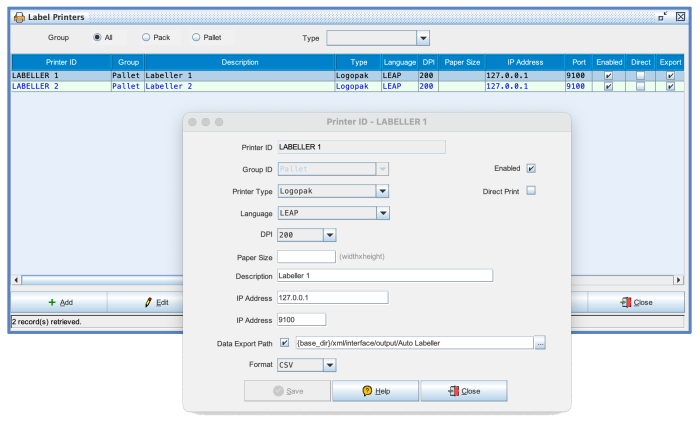
The list
Two filters sit above the list. Group narrows it to printers used for Pack, Pallet or General labels, or shows All. Type narrows it to one make, or shows every make when left blank.
The columns are Printer ID, Group, Description, Type, Language, DPI, Paper Size, IP Address, Port, Enabled, Direct, Export, Format and Path. A line under the list shows how many printers match the filters.
Buttons
| Button | Permission | What it does |
|---|---|---|
| Add | FRM_PRINTER_ADD | Asks for a new Printer ID, then for its Group (Pack, Pallet or General), creates the printer and opens its properties. Cancelling the Group prompt abandons the add without a message. |
| Edit | FRM_PRINTER_EDIT | Opens the properties of the highlighted printer. Double-clicking a row does the same. |
| Delete | FRM_PRINTER_DELETE | After a confirmation, deletes the printer and removes it from every production line it was attached to. |
| Excel | Exports the filtered list to a spreadsheet. | |
| Prints the list as a report. | ||
| Help, Close | Opens this page; closes the screen. |
Printer properties
| Field | Notes |
|---|---|
| Printer ID | Read-only once created. Stored in upper case, at most 30 characters. |
| Group ID | Pack, Pallet or General. Fixed when the printer is created; to change it, delete the printer and add it again. |
| Enabled | Only enabled printers are offered on the label screens. |
| Printer Type | Logopak, Printronix, Videojet or Zebra. |
| Direct Print | Tick when Commander4j should send the label to the printer's IP address and port itself, with no operating system print queue. Leave clear when an external labelling program prints from the exported data. See Printer Queues for how this is set up end to end. |
| Language | IGP/PGL, LEAP, ZPL or Zipher. Must match what the printer understands. |
| DPI | 200 or 300. |
| Paper Size | Width by height, for example 100x150. Stored without spaces. |
| Description | Free text shown in the list. |
| IP Address, Port | Where the printer listens. The defaults are 127.0.0.1 and 9100. Neither value is checked when saved, so a typing mistake only shows up when a label fails to print. |
| Data Export | Tick, then enter or browse to the folder where label data files should be written for an external labelling program, and choose the file Format: CSV, LQF or XML. The folder must be reachable by that program. |
Save is only enabled after something has changed. Close discards unsaved edits without asking.
How a printer reaches the label screens
Each label-printing screen has a device drop-down listing the print queues on the computer plus the printers defined here. A printer is only offered when it is Enabled, set to Direct Print, and its Type, Group, Language and DPI match the settings of that screen's module in Modules. The operator's choice is remembered per workstation and per screen. If a printer you expect is missing from a screen's list, compare those five settings first.
When no device has been chosen on a screen, the label goes to the computer's default printer; see Select Printer.