Printer Queues
Printer Queues explains how a Commander4j report or label reaches a printer. There are three routes, and which one you need depends on the kind of output.
| Output | Route | Set up where |
|---|---|---|
| Standard reports (pallet summaries, despatch notes, audit reports) | A regular operating system print queue | The operating system |
| Barcode labels sent to a print queue | A raw (pass-through) print queue | The operating system |
| Barcode labels sent straight to the printer | A Direct Print printer, addressed by IP address and port | Commander4j, in Label Printers and Modules |
Standard reports
These reports are produced by JasperReports and use regular print queues, exactly as you would for printing spreadsheets or letters. Any printer the operating system can see will do. The report type is defined on the Modules screen. See Pallet Label for more information.
Labels through a raw print queue
A label is a special kind of report. Instead of drawing a page, Commander4j sends the printer's own command language, for example ZPL (Zebra Printer Language), and the printer builds the label itself. Those commands must reach the printer untouched, so the print queue has to be a raw or pass-through queue that does not try to render the data.
- Windows – use a driver from Seagull Scientific or a Generic / Text Only printer queue. Do not use a standard Zebra Windows driver, as this will re-interpret the ZPL rather than passing it through.
- Linux – create a CUPS raw queue pointing at the printer's IP address and port 9100.
- macOS – raw queues used to be created through the CUPS web interface, as described at qz.io. From macOS 27 (Golden Gate) Apple has disabled the CUPS web interface, so a raw queue can no longer be created this way. Use a Direct Print printer instead, as described in the next section.
If you send a label to a regular printer queue you will typically see pages of ZPL commands, which look like a list of numbers and letters, instead of a label. This is harmless but confirms the queue type needs to be changed. If you are interested in the ZPL language, perhaps so you can create your own labels, have a look at the Labelary website or the free ZPL Renderer.
Labels sent directly to the printer
Commander4j can also send a label straight to the labeller's IP address and port, with no operating system print queue involved at all. This is called Direct Print. It works on every platform, it needs no printer driver, and it is the way to print labels on macOS 27 and later.
Direct Print works for pallet labels and for case and tray labels alike. Two things have to be set up: the printer, and the report module that produces the label.
Step 1: define the printer
Open Pallet Transactions › Setup › Label Printers (or Tray & Case Labels › Setup › Label Printers, which is the same screen), press Add and give the printer an ID and a Group. Then fill in its properties:
- Group ID – Pallet for pallet labels, Pack for case and tray labels.
- Printer Type, Language and DPI – the make, command language and resolution of the printer, for example Zebra, ZPL and 300.
- IP Address and Port – where the printer listens on the network. Port 9100 is the usual port for Zebra and most other label printers.
- Enabled – ticked.
- Direct Print – ticked. This is what tells Commander4j to send the label to the IP address itself.
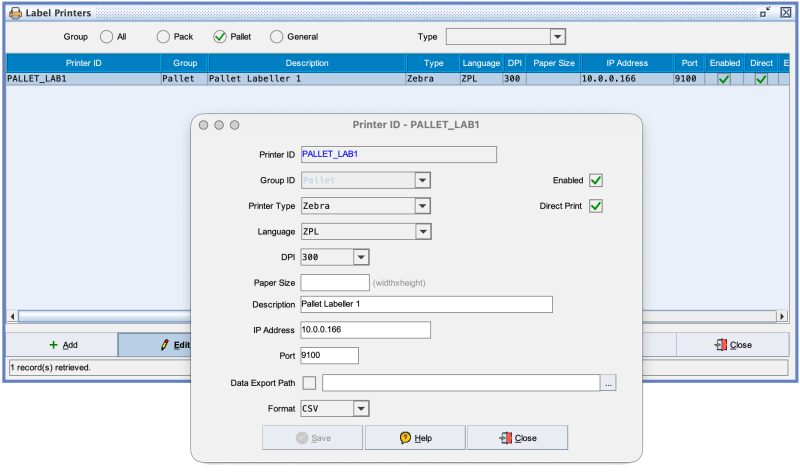
The example above defines a printer called PALLET_LAB1, a 300 dpi Zebra at 10.0.0.166 port 9100, in the Pallet group with Direct Print ticked. Every field is described on the Label Printers page.
Step 2: set the report module to match
The label itself is produced by a report module: RPT_PALLET_LABEL for pallet labels, RPT_PACK_LABEL for case and tray labels. Open Administration › Setup › Modules, find the module and press Edit. On the Edit the Module Properties screen:
- Report Type must be Label.
- Group ID, Printer Type, Language and DPI must be the same as the printer you defined in step 1.
- Direct Print must be ticked.
- Report Filename names the label template in the
labelsfolder, for examplezebra_300dpi_pallet_label_a5_npp.lbl.
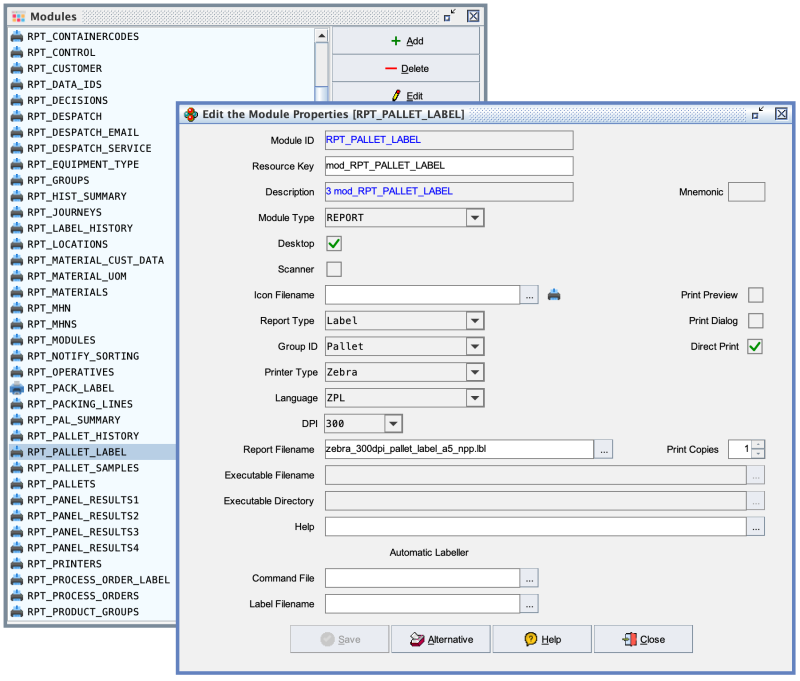
How the two fit together
A printer is only offered on a label screen when its settings agree with the module's. Group ID, Printer Type, Language, DPI and Direct Print must all match, the printer must be Enabled, and the module's Report Type must be Label. If any one of these differs the printer silently stays off the list, so this is the first place to look when a printer you expect is missing.
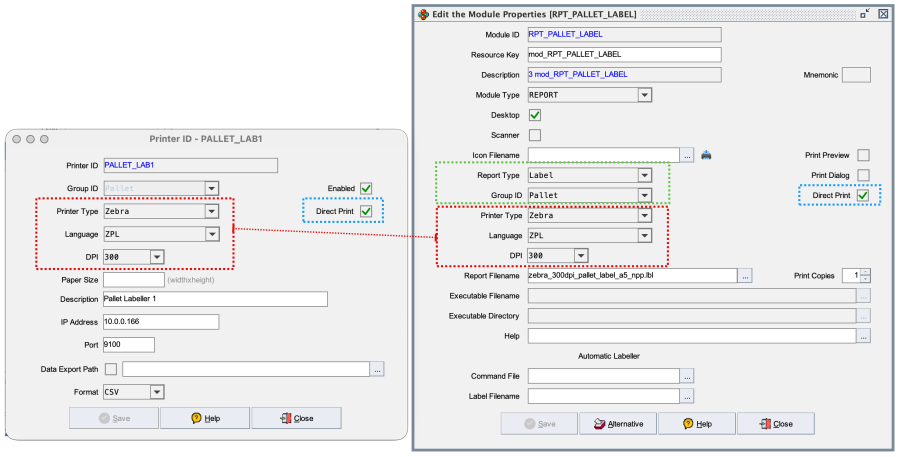
In the picture the Printer Type, Language and DPI of the printer (left, red) must agree with the same three settings on the module (right, red), the Group ID of the printer must agree with the module's Group ID (green), and Direct Print must be ticked on both (blue).
What the operator sees
On the Pallet Label and Case Label screens the Print Queue drop-down lists the operating system print queues first, each with a queue icon, followed by any Direct Print printers that match the module. A Direct Print printer is shown with a different icon and as its Printer ID and Description, for example PALLET_LAB1 - Pallet Labeller 1.
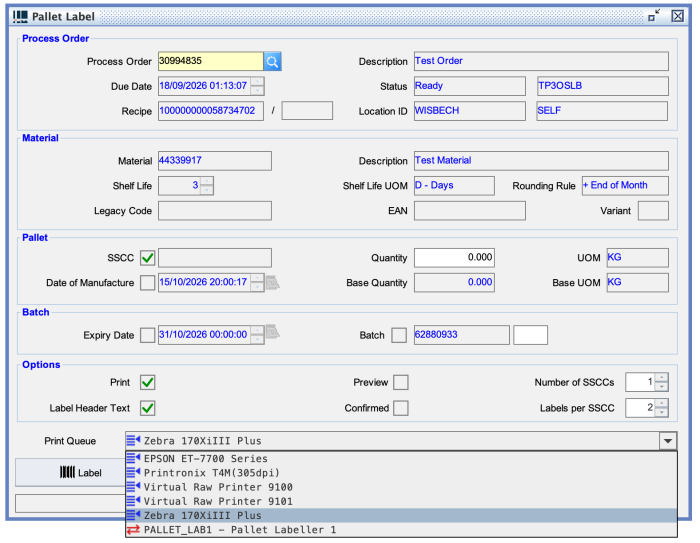
Choose the Direct Print printer and press Label as usual. The choice is remembered per workstation and per screen, so operators only pick it once. When a Direct Print printer is chosen, Commander4j writes the finished label to its spool folder and a background sender delivers it to the printer's IP address and port.
To try Direct Print without using label stock, point a printer definition at ZPL Renderer instead of a real printer. Changing a Label walks through that from start to finish.
See also
- Label Printers – every field on the printer screen.
- Modules – where the report module is edited.
- Select Printer – choosing the computer's default print queue.
- Label Layouts – what is on a label and how templates work.
- Installation – server and workstation set-up, including print queues.