Case Label: Difference between revisions
No edit summary |
Updated by push_wiki.py |
||
| (4 intermediate revisions by the same user not shown) | |||
| Line 1: | Line 1: | ||
[[file:Case_Label.png| | [[Category:Commander4j]] | ||
[[file:Case_Label.png|link=|700px]] | |||
The above screen is used to print Case Labels. | The above screen is used to print Case Labels. | ||
<br><br> | <br><br> | ||
There are two methods to print a label depending on the type or | There are two methods to print a label depending on the type of printer or labeller that you want to use. They are described on the [[Pallet Label#Switching to a barcode printer|Pallet Label]] page and in plain language on [[Label Layouts]]. | ||
{| class="wikitable" style="margin:auto" | {| class="wikitable" style="margin:auto" | ||
| Line 21: | Line 22: | ||
| 5 || Expiry Date is calculated by adding the Shelf Life settings found in the [[Materials]] screen to the Date of Manufacture but you can override if necessary. | | 5 || Expiry Date is calculated by adding the Shelf Life settings found in the [[Materials]] screen to the Date of Manufacture but you can override if necessary. | ||
|- | |- | ||
| 6 || Preview is only applicable for "Standard" reports which are created for any printer. If you change the | | 6 || Preview is only applicable for "Standard" reports which are created for any printer. If you change the RPT_PACK_LABEL module to use a Zebra ZPL compatible Label then you won't be able to preview the label on screen. | ||
|- | |- | ||
| 7 || Number of labels. | | 7 || Number of labels. | ||
|- | |- | ||
| 8 || The Label button is used to generate a label and sent it do the printer from the desktop client and is subtly different to the Assign to Labeller button (10) which is used to drive external labelling applications such as the [ | | 8 || The Label button is used to generate a label and sent it do the printer from the desktop client and is subtly different to the Assign to Labeller button (10) which is used to drive external labelling applications such as the [[AutoLab4j]] application. | ||
|- | |- | ||
| 9 || This is | | 9 || This is the print queue or printer that you want the label to be sent to when using the Label button (8). Operating system print queues are listed first, followed by any Direct Print printers defined in [[Label Printers]], which are shown with a different icon and send the label straight to the printer's IP address. It is important to understand the difference between the two label printing mechanisms and the print queue requirements. See [[Printer Queues]] | ||
|- | |- | ||
| 10 || See [[Process Order Assign to Labeller]] | | 10 || See [[Process Order Assign to Labeller]] | ||
| Line 35: | Line 36: | ||
[[file: Case_Label_Preview.png| | [[file: Case_Label_Preview.png|link=|800px]] | ||
The placeholders available on a case label differ slightly from a pallet label; see [[Label Fields#Case and tray labels|Label Fields]]. | |||
Latest revision as of 20:26, 15 October 2026
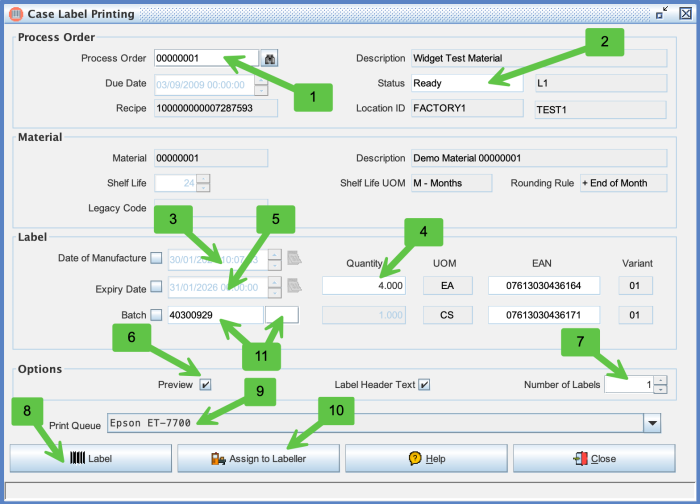
The above screen is used to print Case Labels.
There are two methods to print a label depending on the type of printer or labeller that you want to use. They are described on the Pallet Label page and in plain language on Label Layouts.
| Field | Description |
|---|---|
| 1 | Process Order or Works Order Number can be typed in or picked using the lookup button. |
| 2 | Process Order Status is shown in RED if the order is closed. |
| 3 | Date of Manufacture will default to the computers system clock but you can amend it manually if necessary. The expiry date of the pallet is calculated by adding the shelf life to the date of manufacture. |
| 4 | The screen determines what a full pallet quantity would contain by reference to Material UOMs |
| 5 | Expiry Date is calculated by adding the Shelf Life settings found in the Materials screen to the Date of Manufacture but you can override if necessary. |
| 6 | Preview is only applicable for "Standard" reports which are created for any printer. If you change the RPT_PACK_LABEL module to use a Zebra ZPL compatible Label then you won't be able to preview the label on screen. |
| 7 | Number of labels. |
| 8 | The Label button is used to generate a label and sent it do the printer from the desktop client and is subtly different to the Assign to Labeller button (10) which is used to drive external labelling applications such as the AutoLab4j application. |
| 9 | This is the print queue or printer that you want the label to be sent to when using the Label button (8). Operating system print queues are listed first, followed by any Direct Print printers defined in Label Printers, which are shown with a different icon and send the label straight to the printer's IP address. It is important to understand the difference between the two label printing mechanisms and the print queue requirements. See Printer Queues |
| 10 | See Process Order Assign to Labeller |
| 11 | The structure - content of the Batch Number gets its default format from the System Keys screen. However you can override it on the Customers screen. This allows the content of the label to be different depending on which customer id is assigned to the Process Orders |
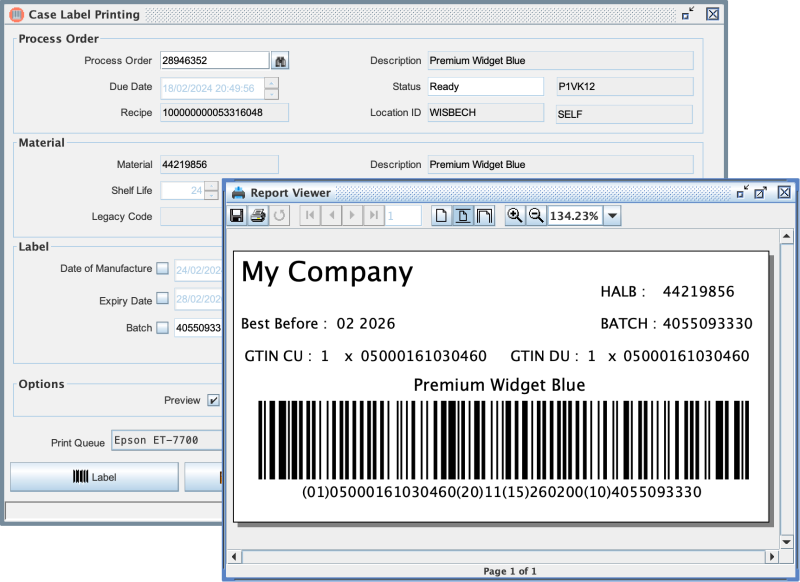
The placeholders available on a case label differ slightly from a pallet label; see Label Fields.